# Arcdps problem solving
## No addons loaded when using the addon manager/loader since 18th April 2023
This is caused by a changed loading order when using CEF.
You should have the `dxgi.dll` in two places: Next to the gw2 executable and in `/bin64/cef`.
So copy it from one place to the other one.
## Arcpds not shown ingame
### nVidia Overlay
Do you use the nVidia Overlay?
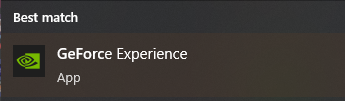
#### Step 1) Open GeForce Experience:
#### Step 2) Open the settings menu:

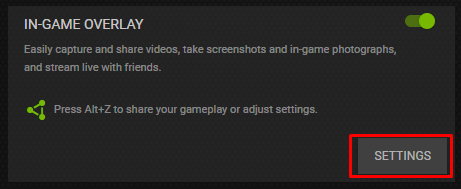
#### Step 3) Open the overlay settings:
#### Step 4) Find the photo editor settings menu:
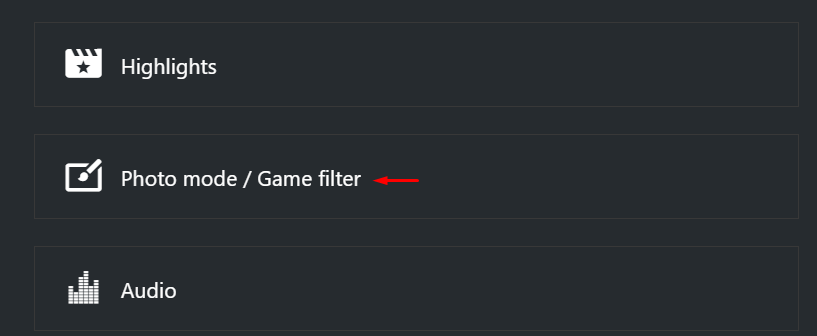
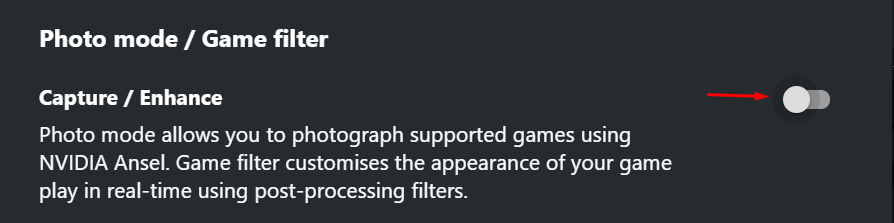
#### Step 5) Turn this setting off:
## Arcdps immediatly crashing without crashlog:
- Test it without any additional addons.
- Turn off Windows compatibility mode.
## Arcdps Modified in RAM:
Do you use any of the following?
- BitDefender
- groupy
- Citrix Workspace (v22 or later)
- mydesk shield
- Nvidia's GeForce Overlay
- Nvidia Smooth Motion
- ASUS GPU Tweak III, Afterburner, RTSS (RivaTuner Statistics Server) or any other GPU overclock/control software
- [medal](<https://medal.tv/>)
- OverWolf
- (Razer Cortex)
### BitDefender:
You have to add GW2 and the GW2 folder as exception to BitDefender.
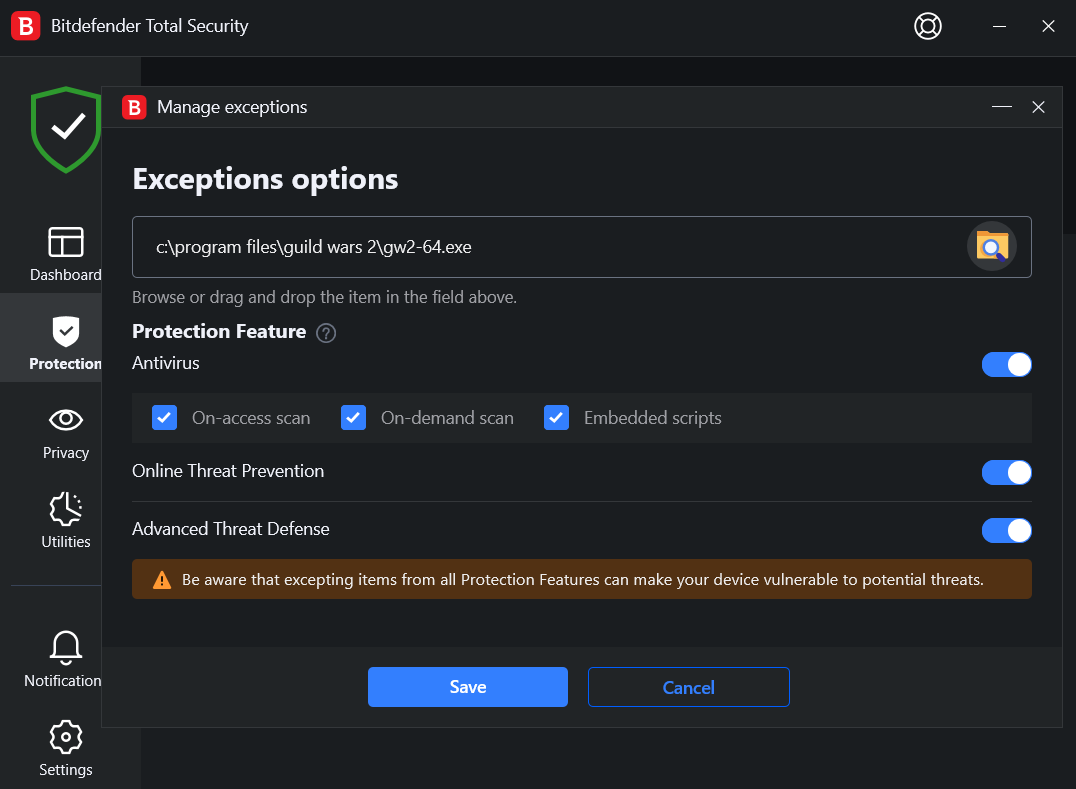
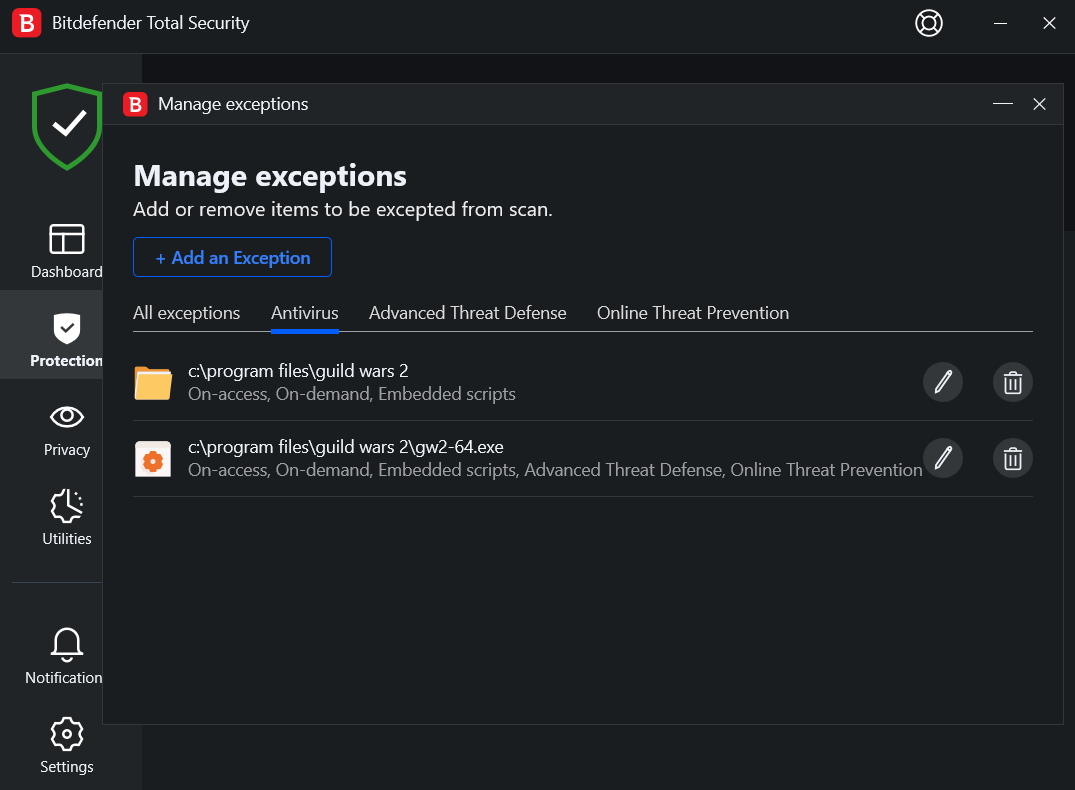
Pinned Message BitDefender:
https://discord.com/channels/456611641526845473/718866934015459400/973976570031128617
### Citrix (v22)
- Uninstall it if possible
- If you need it, uninstall it and then install it with the command line command `CitrixWorkspaceApp.exe ADDLOCAL=ReceiverInside,ICA_Client,AM,SELFSERVICE,DesktopViewer,Flash,Vd3d,WebHelper,BrowserEngine`
### MyDesk Shield
- It installs Citrix as part of it's software.
- Uninstall it, if possible.
- If you need it, we have no solution yet, if you find one, tell us.
### Overclocking Software
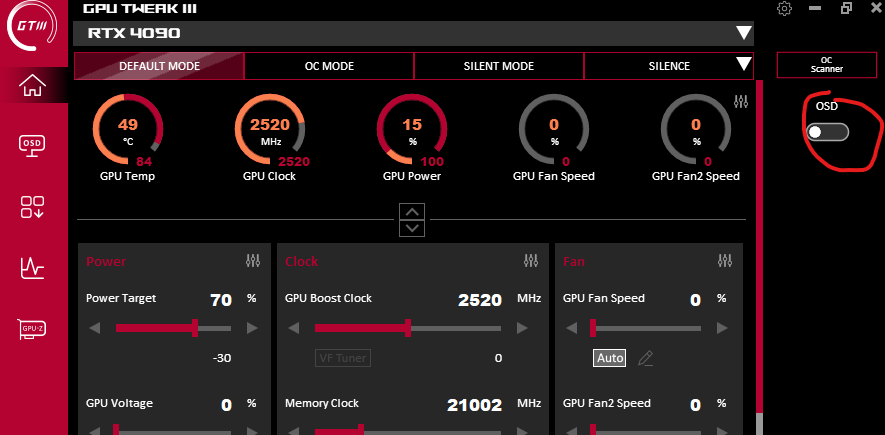
#### ASUS GPU Tweak III
You have to disable the OSD (On-screen display).
#### General overclocking
Depending on the Software you use, you have ingame overlays installed that interfere with other overlays.
Open your Overclocking software and disable all ingame overlays it offers.
Some do install RTSS (RivaTuner Statistics Server), that can be closed in the taskbar.
### Medal
Medal is a software for clipping. Unfortunately the way it hooks the game causes arcdps to break. This hook is active, even when all overlays are disabled. The only solution is to disable medal as a whole, which makes it fully incompatible with arcdps.
DLL that is loaded when medal is active: `%LocalAppData%/Medal/recorder-x.xxx.x/Host/medal-hook64.dll`
### OverWolf
It is incompatible with arcdps/gw2addons. Disable OverWolf while playing GW2 to use addons.
You can disable overwolf just for gw2 in the overwolf settings.
## Failed to create logs
Example:

This happens cause arcdps is not able to write data into the Documents folder. It can be caused by a virus scanner that prevents writing into the Documents folder. Windows itself also has an option to disable access.
## Miscellaneous
### arcdps installed manually, but addon manager was used before
You replaced the `d3d11.dll` from the addon loader with arcdps, which breaks your setup.
Do this to fix it:
- delete d3d11.dll in you gw2 folder
- remove the bin64 folder
- start gw2 and close it again
- open the addon manager and click on "reinstall loader"
- to manually update arcdps, rename the downloaded d3d11.dll to `gw2addon_arcdps.dll`, then replace the existing one in addons/arcdps or use the addon manager.
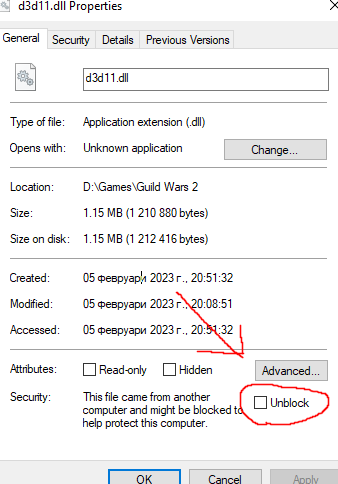
### Unblock d3d11.dll
No addons folder created:
- rightclick d3d11.dll -> options -> unlock at the bottom.
Image:
### arcdps unable to create ini files!
Error messages:
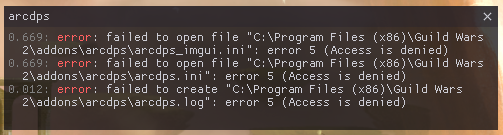
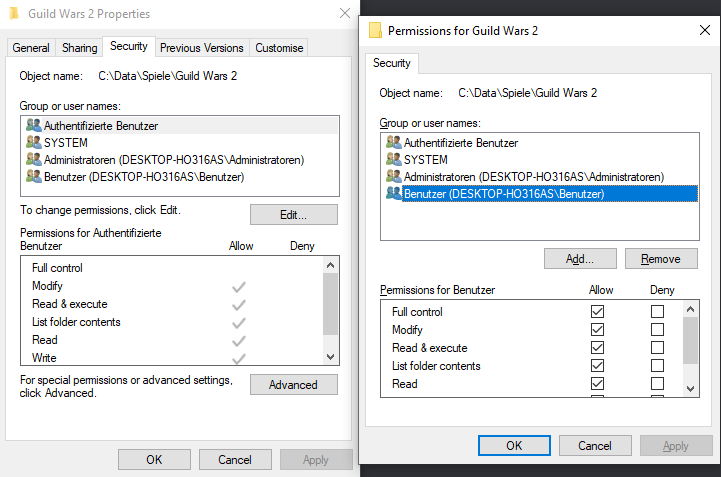
Solution:
Find your Guild Wars 2 folder, then rightclick -> properties -> Security -> Edit -> User -> Full Control -> Ok
### Not loading at all on a notebook
If you have a Notebook, often the default GPU used is the internal one of the CPU.
This CPU internal GPU is NOT supported. Therefore you have to force GW2 to always use the standalone GPU.
[Set default GPU on Windows 11](https://pureinfotech.com/set-default-gpu-apps-windows-11/)
### Disable Safe DLL search mode in the registry:
`HKEY_LOCAL_MACHINE\System\CurrentControlSet\Control\Session Manager\SafeDllSearchMode` to `0`
Disable the Safe DLL search mode in the registry. Let me just explain real quick in case you're suspicious of what I'll explain next.
In windows, there's a load order for dlls, for example it will first look in the folder where the .exe is for the dll (e.g d3d11.dll) this is how arc works, it pretends to be directx11) there's an option that prevents this "hijacking" by first looking for the .dll in the system folder
^ this just as a background so you understand, if you're still not sure about what I'll explain next, I'll link the official article here: https://learn.microsoft.com/en-us/windows/win32/dlls/dynamic-link-library-search-order
So, as for the possible fix:
1. Press Windows Key + R, which will open a Run window, type "regedit" and hit enter. The Registry Editor will open, you can also access it by searching for it in the regular windows search.
2. It will ask you for permission, click okay/yes.
3. Either via the search/folder bar at the top of the Registry Editor, or via the folders on the left hand side, navigate to `HKEY_LOCAL_MACHINE\System\CurrentControlSet\Control\Session Manager\`
4. Check if the key/"file" `SafeDllSearchMode` already exists
> if it exists, set its value to 0
> If it doesn't exist, right click and create a new DWORD, name it as above and set its value to 0.
5. Lastly, restart your computer
### Install the C++ redistributable
Install the latest C++ redistributable.
Page: https://learn.microsoft.com/en-us/cpp/windows/latest-supported-vc-redist?view=msvc-170
Direct Download: https://aka.ms/vs/17/release/vc_redist.x64.exe
## Arcdps Addons
Boon-table: <https://github.com/knoxfighter/GW2-ArcDPS-Boon-Table/releases/latest>
Raid Clears: <https://gw2scratch.com/tools/arcdps-clears>
healing stats: <https://github.com/Krappa322/arcdps_healing_stats/releases/latest>
killproof.me: <https://github.com/knoxfighter/arcdps-killproof.me-plugin/releases/latest>
mechanics: <https://github.com/RaidcoreGG/GW2-Mechanics/releases/latest>
Scrolling combat text: <https://github.com/Artenuvielle/GW2-SCT/releases>
unofficial extras: <https://github.com/Krappa322/arcdps_unofficial_extras_releases/releases/latest>
log uploader: <https://github.com/datatobridge/arcdps-uploader/releases/latest>
buildPad: <https://buildpad.gw2archive.eu>
Food Reminder: https://github.com/Zerthox/arcdps-food-reminder/latest
Squad Ready: https://github.com/cheahjs/arcdps-squad-ready-plugin/releases
Commanders Toolkit: https://github.com/RaidcoreGG/GW2-CommandersToolkit/releases
# Install/Uninstall addon-manager
## Uninstalling addon-manager
1. delete `bin64`
2. delete `addonLoader.dll`
3. delete `d3d11.dll`
4. delete `dxgi.dll`
5. delete the `config.xml` within the addon-manager folder
6.1. if you don't care about your settings: delete `addons`
6.2. if you care about your settings: delete all dlls in all subfolders within `addons` and backup the `addons` folder.
7. start the game, so the bin64 folder is regenerated
8. stop the game
## Installing ReShade with the addon-manager:
1. open the addon manager
2. install `lib_imgui` and `SelectRender` in the addon-manager (and all additional addons you want)
3. delete the `dxgi.dll` next to the gw2 executable
4. install ReShade, select gw2 as game and install like normal
5. create a directory called `reshade` inside the folder `addons`
6. move the `dxgi.dll`, `ReShade.ini`, `ReShade.log` and the folder `reshade-shaders` from the gw2 folder into the created `reshade` folder
7. in the addon manager click on "Reinstall loader"
8. start the game (a popup of SelectRender will be opened)
9. Click on `Change` in that window
10. Select `ReShade` under the `DX11` category
11. Click `Apply`
12. restart the game
# Miscellanious
Image to show file name extensions

## Disable arcdps after breaking gw2 patch
If you used the addon manager:
-> delete/rename the file `<GW2>/addons/arcdps/gw2addon_arcdps.dll`
If you installed arcdps manually:
-> delete/rename the file `<GW2>/d3d11.dll`
## Get the loaded modules via resource monitor
- open gw2
- open resource monitor
- go into the cpu tab
- tick gw2-64 from the list
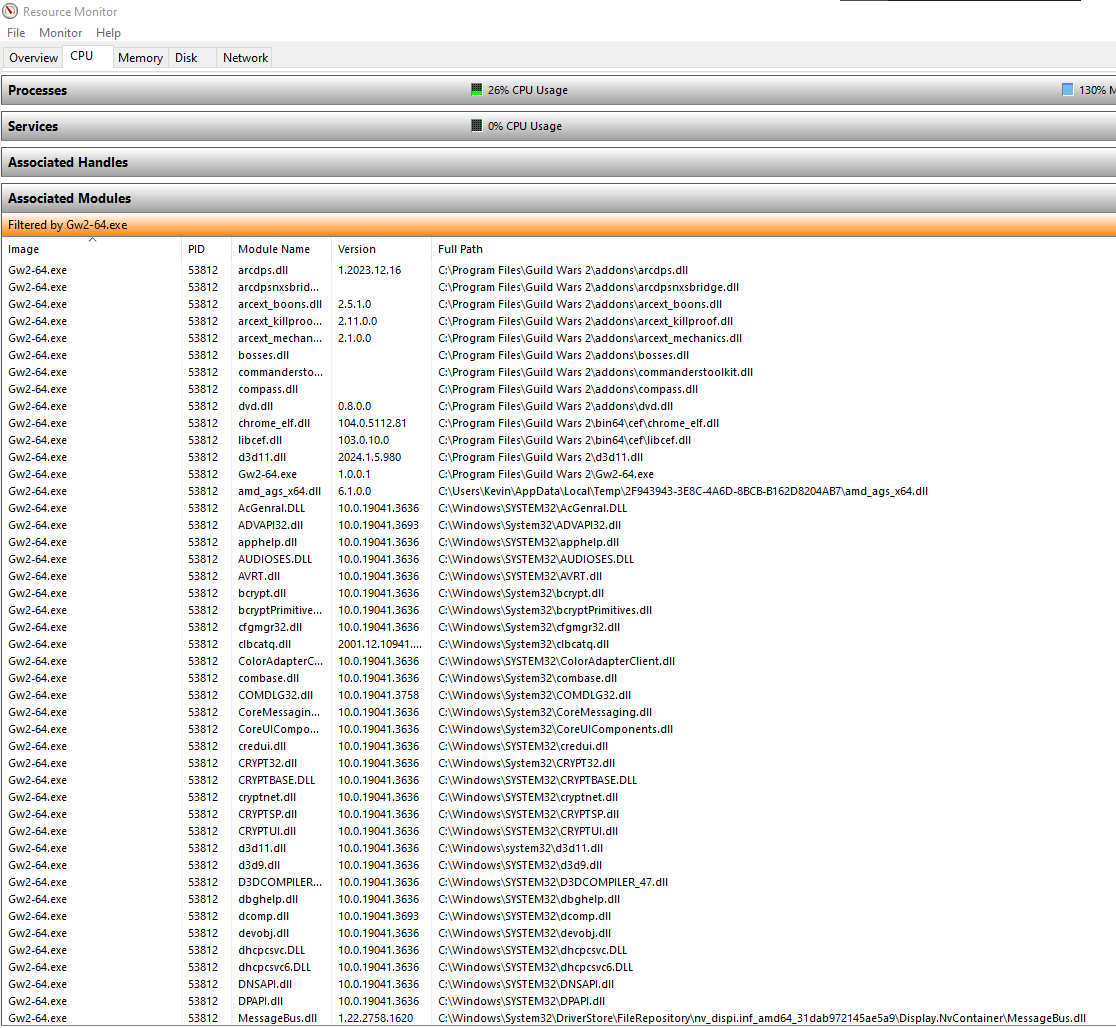
- under associated modules please post a screenshot of that list while you're ingame and you have the "arcdps was modified" message
(it might be multiple, you can't really expand the size of that list)
looks something like this: